Pokémon GO Plus + FAQ
Pokémon GO Plus +
Q1. What is Pokémon GO Plus +?
Pokémon GO Plus + is a companion device for the Pokémon GO mobile game (and compatible Pokémon titles). It connects to your smartphone via Bluetooth to let you play without constantly looking at your screen, and it can also track your sleep when used with supported apps.
Q2. What can I do with Pokémon GO Plus +?
- Spin PokéStops and Gyms.
- Throw Poké Balls to catch Pokémon.
- Track steps while the app is in the background.
- Track sleep and link sleep data to compatible apps.
Q3. What’s included in the box?
- Pokémon GO Plus + device.
- Wrist strap and/or clip.
- Charging cable.
- Quick start guide and safety information.
Q4. My device won’t pair. What should I do?
- Ensure Bluetooth is turned on and your device is within range.
- Make sure Pokémon GO Plus + isn’t already paired with another device.
- Restart your phone and the Pokémon GO app.
- Hold the button on Pokémon GO Plus + to reset pairing mode and try again.
- Forget/remove the device in your phone’s Bluetooth settings and re-pair.
- Press and hold the back and top buttons simultaneously for 10 seconds to factory reset the device.
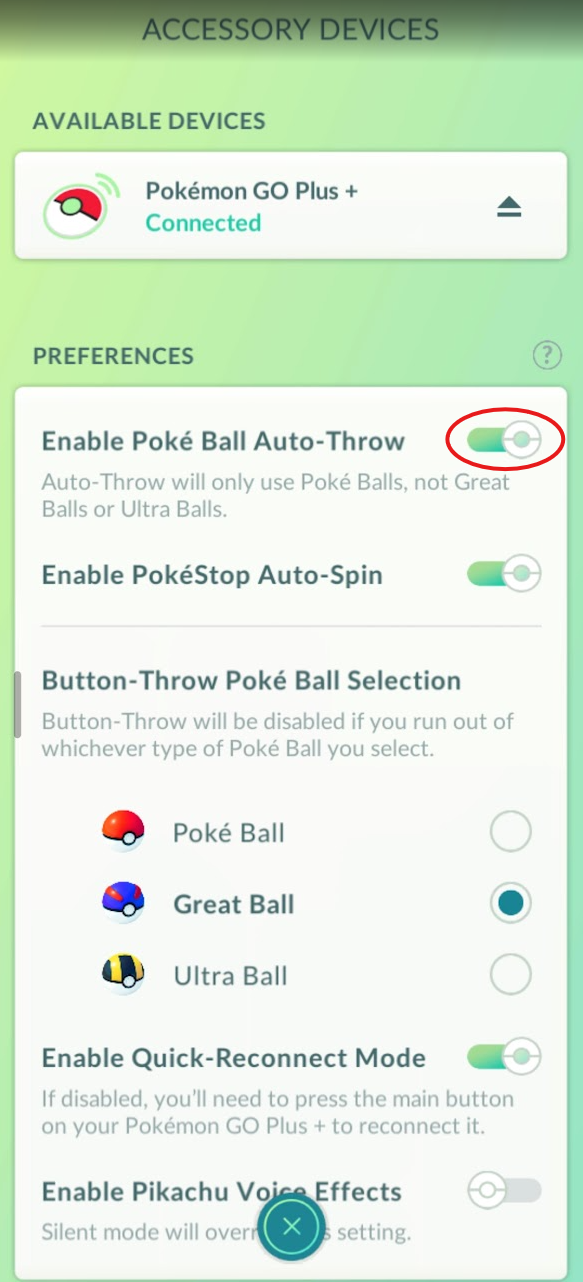
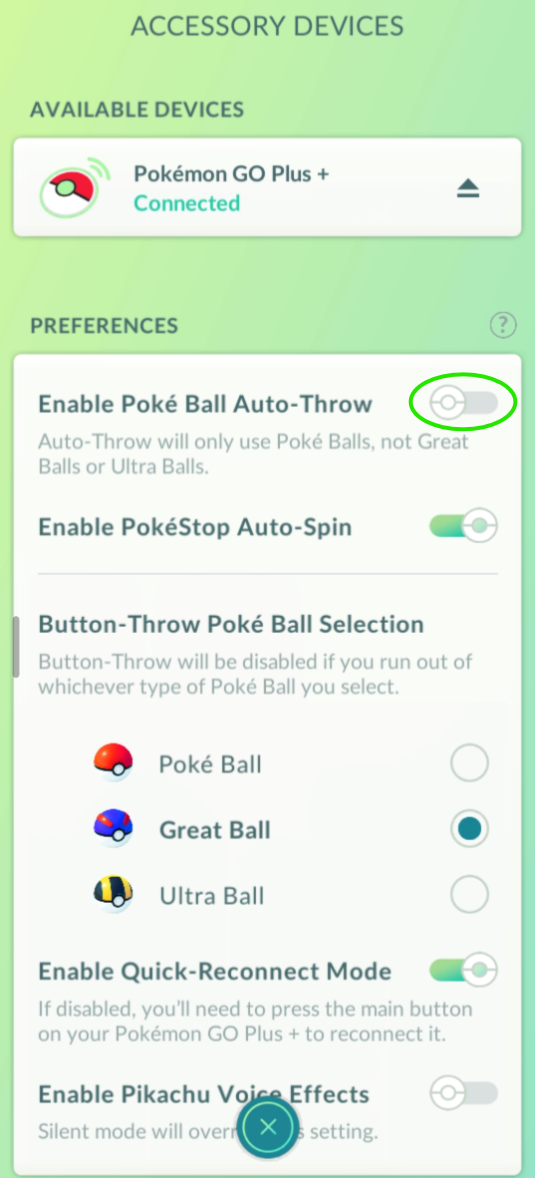
Q5. Auto-catching is not working.
Confirm the settings match the image on the left and not the screenshot on the right.
Q6. My device is malfunctioning (blinking lights, main button does nothing when pressed, etc.).
- The first step is to make sure the switch is OFF (facing the charging port).
- Try a soft reset by pressing the small button on the back of the device.
- If this does not resolve your issue, perform a factory reset by pressing and holding the back and top buttons simultaneously for 10 seconds.
Q7. My device keeps going in and out of sleep mode (LED going blue and then red repeatedly).
If the Pokémon GO Plus + is not currently connected to your Pokémon GO app and the switch is set to the ON position (away from the charging port), it will go in and out of sleep mode. To fix this, either reconnect the device or turn the switch to the OFF position (facing the charging port).
Coins, Passes & Tickets
Q8. How do PokéCoin top-ups work?
To add coins directly to your account, we temporarily sign in on our secure device, load the balance, and then log out right away. Your password is never stored beyond the transaction, and you can change it immediately afterward for peace of mind.
Q9. Is there anything special I need to do after you add coins?
If you live outside the Sacramento area, please wait for the cooldown timer to reset before playing (usually 2 hours). This prevents the game from flagging your account for jumping between locations.
Q10. Can you send tickets or giftable passes without logging in?
Yes. As long as we’re at least Great Friends in Pokémon GO (seven days of interactions), we can send giftable passes remotely through the in-game gift system without ever accessing your account.
Q11. What login method should I use?
Pokémon Trainer Club logins are convenient for this process, but we do not recommend them for long-term security. If you use one, set a unique password with at least 15 characters and a mix of symbols, numbers, and upper/lowercase letters, and consider changing it after we finish.
If you prefer not to use a Trainer Club login, we can coordinate a Gmail sign-in instead—just be ready to share the one-time code (OTP) with us during the scheduled window.
Q12. How many coin packs can I buy at once?
For safety, we recommend purchasing up to five coin packs per session. Want more? We can run another top-up the following day.
Q13. Which passes can you send?
We can only deliver passes that are visible inside the Pokémon GO in-game shop. Items that appear exclusively on the web store aren’t giftable.
Q14. What payment methods do you accept?
We accept Venmo, Cash App, and Zelle (preferred).